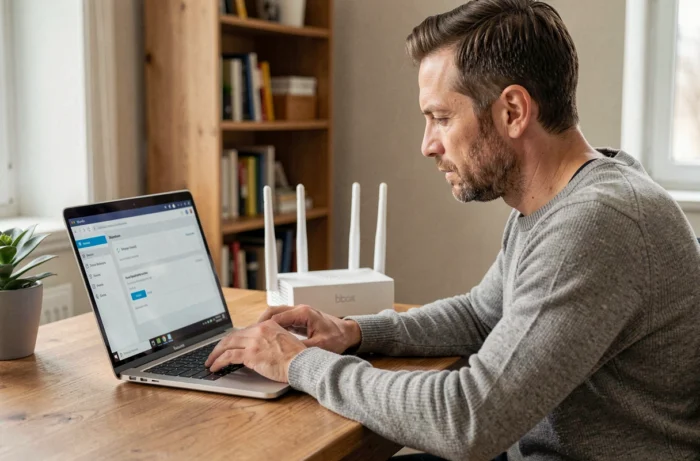
The Bbox administration interface is a local control panel, accessible from a browser, that allows you to modify the network, Wi-Fi, and telephony settings of your Bouygues Telecom box. Three addresses provide access to this panel: mabbox.bytel.fr, 192.168.1.254, and, on recent models, gestionbbox.lan.
Access addresses for the Bbox interface: which one to use
Most guides only mention mabbox.bytel.fr. This address works when the box correctly resolves internal domain names, which is not always the case after a restart or on certain browsers.
The IP address 192.168.1.254 remains the most reliable for reaching the administration panel. It does not depend on any local DNS resolution: the browser contacts the box directly on the network.
On the latest generation Bbox, a third address has emerged: gestionbbox.lan. It follows the principle of a readable name but uses the .lan suffix reserved for local networks, which reduces conflicts with remote DNS servers. If mabbox.bytel.fr refuses to load, testing gestionbbox.lan or 192.168.1.254 resolves the issue in the vast majority of cases.
Mastering the administration of the Bbox Bouygues starts with choosing the right address based on your box model and network configuration.
First Bbox connection: Ethernet cable and initial password
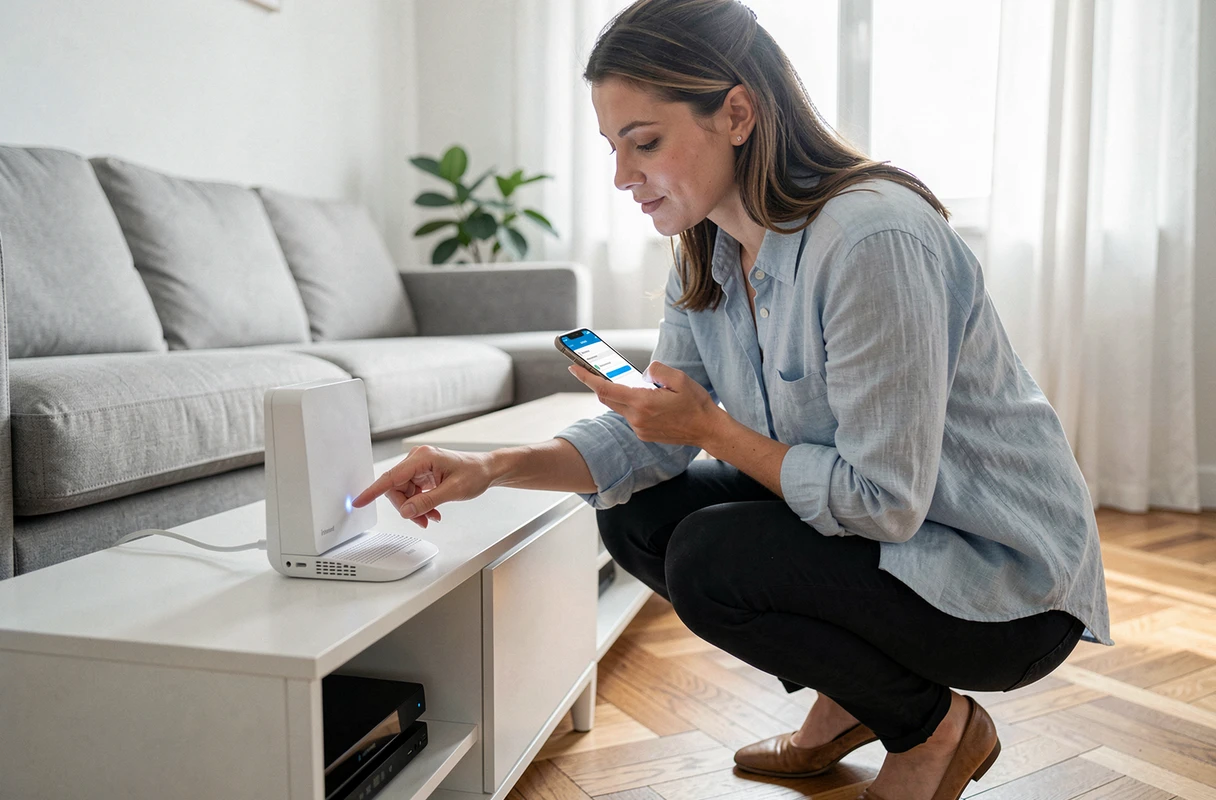
During the very first connection, an Ethernet cable between the computer and the Bbox is recommended. The Wi-Fi is not yet configured with your personal settings, and the default signal may be unstable.
The first connection process varies depending on the box model.
- On the new Bbox interface (white box), the system prompts you to create a custom password as soon as you open mabbox.bytel.fr, then optionally offers to link a Bouygues Telecom customer account to unlock all features.
- On the old interface, the default username is “admin” and the password is also “admin.” This login pair must be changed immediately: leaving the default credentials exposes the local network to anyone connected to the Wi-Fi.
- Linking the Bouygues customer account is optional during the initial setup, but it conditions access to certain advanced settings like consumption tracking or parental control via the web interface.
For subsequent connections, Wi-Fi is sufficient. The address remains the same, only the password set during the first access is required.
Configure Bbox Wi-Fi from the interface or mobile app
The Wi-Fi tab of the administration interface focuses on the most commonly used settings: network name (SSID), password, channel selection, and frequency band selection. Changing the Wi-Fi channel can reduce interference in a building where multiple boxes emit on the same frequency.
A recent change deserves attention: the Bouygues Telecom app now allows you to manage Wi-Fi without going through the web interface. From the “My Bbox” section of the app, you can find the Wi-Fi key, customize it, or reset it. For users who are not comfortable with a browser, this method significantly simplifies daily management.
On the Bbox Ultym, Bouygues Telecom introduces Wi-Fi 7 compatibility. This standard changes the configuration logic: channels are wider, multi-device management is natively optimized, and the theoretical speed significantly improves compared to Wi-Fi 6. The Wi-Fi section of the administration interface then displays additional options related to this standard.
Advanced network settings: NAT, ports, and remote access
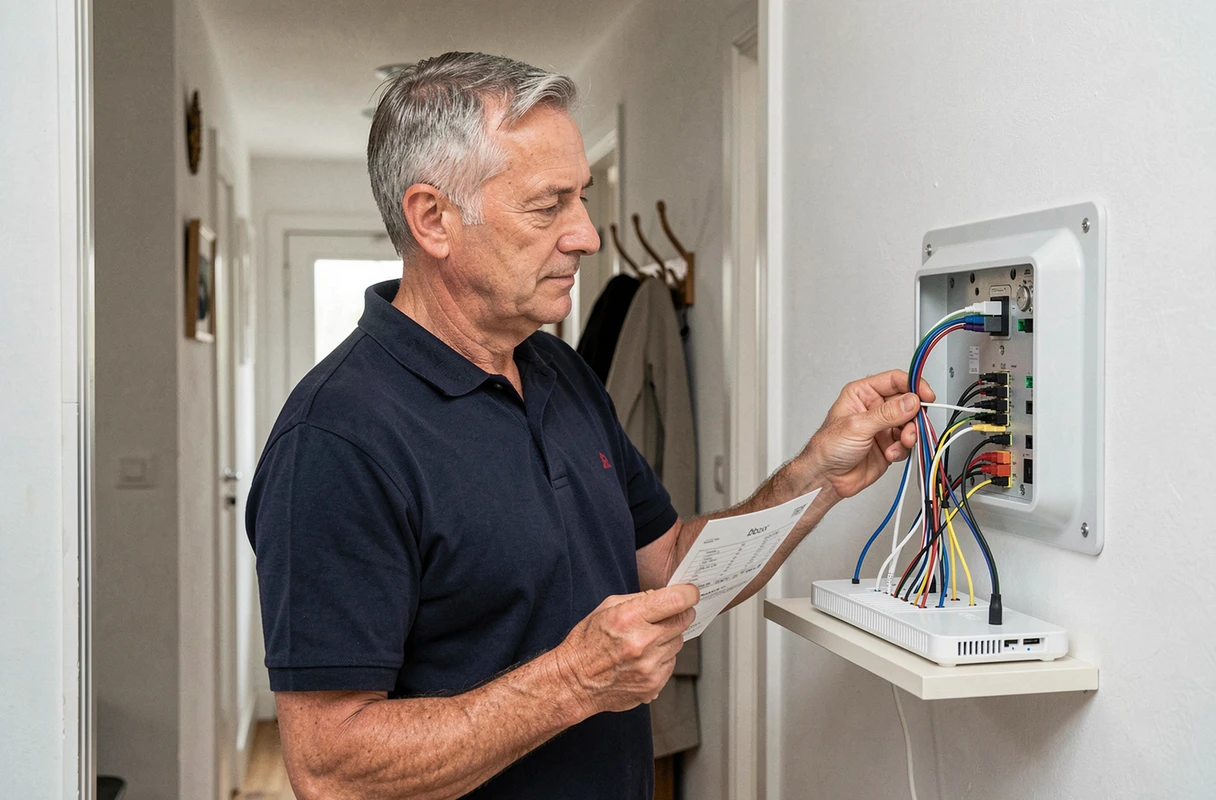
The network tab of the Bbox interface provides access to settings that most subscribers never use, but which become necessary in certain specific cases.
Port forwarding (NAT/PAT) is used to make a service hosted on the local network accessible from the internet: game server, surveillance camera, NAS. The procedure goes through the NAT tab of the interface, where you specify the external port, internal port, and local IP address of the target device.
Changing the DNS server is another useful setting. Replacing Bouygues’ default DNS with those of a third-party provider can speed up domain name resolution or bypass certain blocks. This setting is found in the Internet tab of the administration interface.
Remote access is activated from the local interface and allows connection to the administration panel outside the home. The address to use is no longer 192.168.1.254 but the public IP address of the box, visible in the Internet tab. This feature remains disabled by default for security reasons.
Limitations to know before configuring everything from the Bbox interface
The administration interface does not cover all situations. The 4K TV decoder associated with certain offers (notably the Bbox Special Series) is not compatible with a Wi-Fi connection without an additional paid option. Connecting it via Ethernet remains the only solution included in the basic subscription.
A complete reset of the Bbox (reset button held for several seconds) erases all custom settings: interface password, Wi-Fi configuration, NAT rules, modified DNS. Before any reset, noting your custom settings prevents having to reconfigure everything.
The local web interface and the mobile app do not provide exactly the same functions. NAT/PAT settings and DNS changes are only accessible from the browser. The app focuses on Wi-Fi, network diagnostics, and consumption tracking.